
Thursday, 13 October 2011


TUGASAN 2
I/O MANAGEMENT
Input/output, or I/O, refers to the communication between an information processing system (such as a computer), and the outside world, possibly a human, or another information processing system. Inputs are the signals or data received by the system, and outputs are the signals or data sent from it. The term can also be used as part of an action; to "perform I/O" is to perform an input or output operation. I/O devices are used by a person (or other system) to communicate with a computer. For instance, a keyboard or a mouse may be an input device for a computer, while monitors and printers are considered output devices for a computer. Devices for communication between computers, such as modems andnetwork cards, typically serve for both input and output.
Note that the designation of a device as either input or output depends on the perspective. Mouse and keyboards take as input physical movement that the human user outputs and convert it into signals that a computer can understand. The output from these devices is input for the computer. Similarly, printers and monitors take as input signals that a computer outputs. They then convert these signals into representations that human users can see or read. For a human user the process of reading or seeing these representations is receiving input. These interactions between computers and humans is studied in a field called human–computer interaction.
In computer architecture, the combination of the CPU and main memory (i.e. memory that the CPU can read and write to directly, with individual instructions) is considered the brain of a computer, and from that point of view any transfer of information from or to that combination, for example to or from a disk drive, is considered I/O. The CPU and its supporting circuitry provide memory-mapped I/O that is used in low-level computer programming in the implementation of device drivers. An I/O algorithm is one designed to exploit locality and perform efficiently when data reside on secondary storage, such as a disk drive.
CONCEPT OF BUFFERING
In computer science, a buffer is a region of a physical memory storage used to temporarily hold data while it is being moved from one place to another. Typically, the data is stored in a buffer as it is retrieved from an input device (such as a mouse) or just before it is sent to an output device (such as speakers). However, a buffer may be used when moving data between processes within a computer. This is comparable to buffers in telecommunication. Buffers can be implemented in a fixed memory location in hardware - or by using a virtual data buffer in software, pointing at a location in the physical memory. In all cases, the data stored in a data buffer, are stored on a physical storage media. A majority of buffers are implemented in software, which typically use the faster RAM memory to store temporary data, due to the much faster access time compared with Hard Disk Drives. Buffers are typically used when there is a difference between the rate at which data is received and the rate at which it can be processed, or in the case that these rates are variable, for example in a printer spooler or in online video streaming.
SPOOLING TECHNIQUE

TUGASAN 1
MEMORY MANAGEMENT
Memory management is the act of managing computer memory. In its simpler forms, this involves providing ways to allocate portions of memory to programs at their request, and freeing it for reuse when no longer needed. The management of main memory is critical to the computer system.
Virtual memory systems separate the memory addresses used by a process from actual physical addresses, allowing separation of processes and increasing the effectively available amount of RAM using paging or swapping to secondary storage. The quality of the virtual memory manager can have a big impact on overall system performance.
Garbage collection is the automated deallocation of computer memory resources for a program. This is generally implemented at the programming language level and is in opposition tomanual memory management, the explicit allocation and deallocation of computer memory resources. Region-based memory management is an efficient variant of explicit memory management that can deallocate large groups of objects simultaneously.
OBJECTIVE OF MEMORY MANAGEMENT
- Memory management allows you to make sure that precious memory space isn't taken up by objects that no longer have a purpose in your application, and that objects that are still needed continue to exist. After an object has been created and you finish using it, it will need to be disposed of so that memory isn't taken up needlessly.
- When an object becomes detached from an application's control without being "de-allocated," memory is wasted.
- To provide a detailed description of the Intel Pentium, which supports both pure segmentation and segmentation with paging.
- Register access in one CPU clock (or less).
- Main memory can take many cycles.
- Cache sits between main memory and CPU registers.
- Protection of memory required to ensure correct operation.
VIRTUAL MEMORY IMPLEMENTATION
In computing, virtual memory is a memory management technique developed for multitasking kernels. This technique virtualizes acomputer architecture's various forms of computer data storage (such as random-access memory and disk storage), allowing a program to be designed as though there is only one kind of memory, "virtual" memory, which behaves like directly addressable read/write memory (RAM).
Most modern operating systems that support virtual memory also run each process in its own dedicated address space, allowing a program to be designed as though it has sole access to the virtual memory. However, some older operating systems (such as OS/VS1and OS/VS2 SVS) and even modern ones (such as IBM i) are single address space operating systems that run all processes in a single address space composed of virtualized memory.
Systems that employ virtual memory:
- use hardware memory more efficiently than do systems without virtual memory.
- make the programming of applications easier:
- by hiding fragmentation,
- by delegating to the kernel the burden of managing the memory hierarchy (there is no need for the program to handle overlay sexplicitly),
- and, when each process is run in its own dedicated address space, by obviating the need to relocate program code or to access memory with relative addressing..
Embedded systems and other special-purpose computer systems that require very fast and/or very consistent response times may opt not to use virtual memory due to decreased determinism; virtual memory systems trigger unpredictable interrupts that may produce unwanted "jitter" during I/O operations. This is because embedded hardware costs are often kept low by implementing all such operations with software (a technique called bit-banging) rather than with dedicated hardware. In any case, embedded systems usually have little use for complicated memory hierarchies.
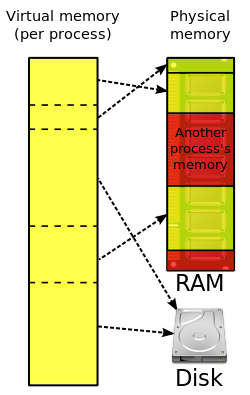
In computer operating systems, paging is one of the memory-management schemes by which a computer can store and retrieve data from secondary storage for use in main memory. In the paging memory-management scheme, the operating system retrieves data from secondary storage in same-size blocks called pages. The main advantage of paging is that it allows the physical address space of a process to be noncontiguous. Before the time paging was used, systems had to fit whole programs into storage contiguously, which caused various storage and fragmentation problems.
Paging is an important part of virtual memory implementation in most contemporary general-purpose operating systems, allowing them to use disk storage for data that does not fit into physical random-access memory (RAM).
Paging supervisor
This part of the operating system creates and manages page tables. If the hardware raises a page fault exception, the paging supervisor accesses secondary storage, returns the page that has the virtual address that resulted in the page fault, updates the page tables to reflect the physical location of the virtual address and tells the translation mechanism to restart the request.
When all physical memory is already in use, the paging supervisor must free a page in primary storage to hold the swapped-in page. The supervisor uses one of a variety of page replacement algorithms such as least recently used to determine which page to free.
MEMORY SEGMENTATION
Memory segmentation is one of the most common ways to achieve memory protection, another common one is paging, and both methods can be combined. The size of memory segments is generally not fixed and is usually less than any limitation imposed by the computer, otherwise segmentation could be treated the same as paging. Also segmentation is generally more visible than paging because the programmer or compiler has to define the segments.
A segment has a set of permissions, and a length, associated with it. A process is only allowed to make a reference into a segment if the type of reference is allowed by the permissions, and the offset within the segment is within the range specified by the length of the segment. Otherwise, a hardware exception such as a segmentation fault is raised.
As well as its set of permissions and length, a segment also has associated with it information indicating where the segment is located in memory. It may also have a flag indicating whether the segment is present in main memory or not; if a segment is accessed that is not present in main memory, an exception is raised, and the operating system will read the segment into memory from secondary storage. The information indicating where the segment is located in memory might be the address of the first location in the segment, or might be the address of a page table for the segment, if the segmentation is implemented with paging. In the first case, if a reference to a location within a segment is made, the offset within the segment will be added to address of the first location in the segment to give the address in memory of the referred-to item; in the second case, the offset of the segment is translated to a memory address using the page table.
When a segment does not have a page table associated with it, the address of the first location in the segment is usually an address in main memory; in those situations, no paging is done. In the Intel 80386 and later, that address can either be an address in main memory, if paging is not enabled, or an address in a paged address space, if paging is enabled.
A memory management unit (MMU) is responsible for translating a segment and offset within that segment into a memory address, and for performing checks to make sure the translation can be done and that the reference to that segment and offset is permitted.
MEMORY RELOCATION POLICY


